Thursday, 6 October 2022

CICD pipeline for Azure Blob storage with CDN - Part 3 Powershell to provision Azure infrastructure

Now the meat let's set up our AzureInfrastructure.ps1 script, open it in your ms Code editor, and let's start by setting up some input parameters and creating a simple function to create a resource group in azure for us.

Param (
  [Parameter()][String]$location,
  [Parameter()][String]$name,
  [Parameter()][String]$env)

#create resource group
function CreateResourceGroup {
    Param(
        [Parameter(Mandatory=$true)][String]$name,
        [Parameter(Mandatory=$true)][String]$location,
        [Parameter(Mandatory=$true)][String]$env)

    #setup resource Group name using prefix
    $rgName = ("rg-$name-$env").ToLower()

    #check if resource group already exists
    $resourceGroup = Get-AzResourceGroup `
        -Name $rgName `
        -ErrorAction SilentlyContinue
    if($resourceGroup){
        Write-host "Resource group '$rgName' already exists" -foregroundcolor yellow
        return $rgName
    }

    #create resource group
    try {
        Write-Host "Createing '$rgName' resource group in '$location'" -ForegroundColor Magenta
        $resourceGroup = New-AzResourceGroup `
            -Name $rgName `
            -Location $location
        Write-host "Resource group '$rgName' created  in '$location'" -foregroundcolor Green
        return $rgName
    }
    catch {
        #failed to create resourcec group  
         Write-error "Resource group '$rgName' NOT created" -ErrorAction Stop  
    }
}


$rgName = CreateResourceGroup $name $location $env

These will let our YAML file input parameters to our PowerShell which will make our lives easier in the long run, our powershell then will use those parameters to build our infrastructure. 

Now that we have parameterized our PowerShell script, let's jump back to our YAML file and pass those parameters to our script

# Starter pipeline
# Start with a minimal pipeline that you can customize to build and deploy your code.
# Add steps that build, run tests, deploy, and more:
# https://aka.ms/yaml

trigger:
- dev
- test
- master

variables:
  ${{ if startsWith(variables['Build.SourceBranch'], 'refs/heads/') }}:
    branchName: $[ replace(variables['Build.SourceBranch'], 'refs/heads/', '') ]
  ${{ if startsWith(variables['Build.SourceBranch'], 'refs/pull/') }}:
    branchName: $[ replace(variables['System.PullRequest.TargetBranch'], 'refs/heads/', '') ]
  name: 'pav'
  location: 'westeurope'
  azureSubscription: 'Pavs Subscription(6e72246e-0000-0000-0000-000000000000)'

pool:
  vmImage: 'windows-latest'

steps:
- script: |
    echo BranchName = '$(branchName)'
    echo name = '$(name)'
    echo location = '$(location)'
    echo azureSubscription = '$(azureSubscription)'
  displayName: 'List YAML variables'

- task: AzurePowerShell@5
  inputs:
    azureSubscription: '$(azureSubscription)'
    ScriptType: 'FilePath'
    ScriptPath: '$(Build.SourcesDirectory)/AzureInfrastructure.ps1'
    ScriptArguments: >
      -location: $(location)
      -name: $(name)
      -env: $(branchName)
    errorActionPreference: 'continue'
    FailOnStandardError: true
    azurePowerShellVersion: 'LatestVersion'

with those two changes complete and SAVED, let's test our work, in theory all we have to do now, is commit our changes and push our code, Devops should pick them up, connect to azure and create our resource group.

the command we execute in our command line are

  1. Add our changes to our repo: git add .
  2. commit our changes : git commit -m 'a comment for our source control'
  3. push our changes: git push
and that's it, now we can go back to our azure devops portal to see if our pipeline ran correctly.


from the looks of our job, it was a success, now lets do one final check and login to our Azure portal and see if in fact we have a resource group called 'rg-pav-master'


and sure enough there it is our resource group, alright next step is to update our powershell to create a Blob storage in our resource group.

let's create a powershell function that does just that.

#create Blob storage account
function CreateStorageAcccount {
    param (
        [Parameter(Mandatory=$true)][String]$name,
        [Parameter(Mandatory=$true)][String]$rgName,
        [Parameter(Mandatory=$true)][String]$location,
        [Parameter(Mandatory=$true)][String]$env)  
   
    $stName = "st$name$env".ToLower();

    $storageAccount = Get-AzStorageAccount `
        -ResourceGroupName $rgName `
        -Name $stName `
        -ErrorAction SilentlyContinue

    if($storageAccount){
        Write-host "Sorage account '$stName' already exists in resouce group '$rgName'" -foregroundcolor yellow
        return $stName
    }

     #create storage account
     try {
        Write-Host "Createing storage account '$stName' in resource group in '$rgname'" -ForegroundColor Magenta
        $storageAccount =  New-AzStorageAccount `
            -ResourceGroupName $rgName `
            -Name $stName `
            -Location $location `
            -SkuName Standard_LRS `
            -Kind BlobStorage `
            -AccessTier Hot
   
        Write-host "Storage account created" -foregroundcolor Green
        return $stName
    }
    catch {
        #failed to create storagte account  
         Write-error "storage account '$stName' NOT created in resouce group '$rgName'" -ErrorAction Stop  -foregroundcolor red
    }
}

notice the section in the try catch statement, here we create a new storage account, we set it to blob storage and to 'Locally-redundant storage (LRS)' because that's the cheapest option.

Now that we have our Blob storage set up, we have to configure a public container for our files, this is where they will be hosted.

#create Blob storage container
function CreateStorageContainer {
    param (
        [Parameter(Mandatory=$true)][String]$name,
        [Parameter(Mandatory=$true)][String]$rgName,
        [Parameter(Mandatory=$true)][String]$env,
        [Parameter(Mandatory=$true)][String]$stName)

    $strContainerName = "container-public-$name-$env".ToLower()

    $key = Get-AzStorageAccountKey `
        -ResourceGroupName $rgName `
        -Name $stName

    $stContext = New-AzStorageContext `
        -StorageAccountName $stName `
        -StorageAccountKey $key[0].Value
    $strContainer = Get-AzStorageContainer `
        -Name $strContainerName `
        -Context $stContext `
        -ErrorAction SilentlyContinue

    if($strContainer){
        Write-host "storage container '$strContainerName' already exists" -foregroundcolor yellow
        return $strContainer
    }

     # Create new storage container
     try {
        Write-Host "Creating storage container $strContainerName" -ForegroundColor Magenta
        $strContainer = New-AzStorageContainer `
            -Name $strContainerName `
            -Permission Blob `
            -Context $stContext
        Write-host "storage container '$strContainerName' created" -foregroundcolor Green
        return $strContainer
    }
    catch {
        #failed to create resource group  
        Write-error "CDN profile '$cdnProfileName' NOT created in '$rgName'" -ErrorAction Stop  
    }
}

with that set up, now we will start building our CDN, that is what is going to cache our images all over the world, so that if our site is hosted in West Europe, but our users are in Australia they will still receive optimal performance.

Let's create a cdn profile function.

# create a CDN profile
function CreateCdnProfile{
    param (
        [Parameter(Mandatory=$true)][String]$name,
        [Parameter(Mandatory=$true)][String]$rgName,
        [Parameter(Mandatory=$true)][String]$location,
        [Parameter(Mandatory=$true)][String]$env)  

        $cdnProfileName = "cdn-profile-$name-$env"
        $cdnProfile = Get-AzCdnProfile `
            -ProfileName $cdnProfileName `
            -ResourceGroupName $rgName `
            -ErrorAction SilentlyContinue

        if($cdnProfile){
            Write-host "CDN '$cdnProfileName' already exists in resource group '$rgName'" -foregroundcolor yellow
            return $cdnProfileName
        }

        # Create a new cdn profile
        try {
            Write-Host "Createing cdn profile $cdnProfileName in resource group in $rgname" -ForegroundColor Magenta
            $cdnProfile =  New-AzCdnProfile `
                -ProfileName $cdnProfileName `
                -ResourceGroupName $rgName `
                -Sku Standard_Microsoft `
                -Location $location
            Write-host "Cdn profile '$cdnProfileName' created in '$rgName'" -foregroundcolor Green
            return $cdnProfileName
        }
        catch {
            #failed to create resourcec group  
            Write-error "CDN profile '$cdnProfileName' NOT created in '$rgName'" -ErrorAction Stop  
        }
}

With that complete, we now create a cdn endpoint.

#create a cdn endpoint
function CreateCdnEndPoint{
    param (
        [Parameter(Mandatory=$true)][String]$cdnProfileName,
        [Parameter(Mandatory=$true)][String]$name,
        [Parameter(Mandatory=$true)][String]$rgName,
        [Parameter(Mandatory=$true)][String]$location,
        [Parameter(Mandatory=$true)][String]$stName,
        [Parameter(Mandatory=$true)][String]$env)  

    $cdnEndPointName = "cdn-endpoint-$name-$env-$location"
    Write-Host "-ResourceGroupName $rgName -ProfileName $cdnProfileName -Name $cdnEndPointName "
   
   $cdnEndpoint = Get-AzCdnEndpoint `
        -ResourceGroupName $rgName `
        -ProfileName $cdnProfileName `
        | Where-Object {$_.Name -eq $cdnEndPointName}

   if($cdnEndpoint){
       Write-host "cdn endpoint '$cdnEndpointName' already exists in resource group $rgName" -foregroundcolor yellow
       return $cdnEndpoint
   }

    # Create new cdn endpoint
    try {
        Write-Host "Createing CDN endPoint $cdnEndPointName in resource group $rgName" -ForegroundColor Magenta
        $originHostHeader = "$stName.blob.core.windows.net"
       
        $origin = @{
            Name = $originHostHeader.Replace('.','-')
            HostName = $originHostHeader
        };
        New-AzCdnEndpoint `
            -ResourceGroupName $rgName `
            -ProfileName $cdnProfileName `
            -OriginHostHeader  $originHostHeader `
            -Name $cdnEndPointName `
            -Location $location `
            -OptimizationType "GeneralWebDelivery" `
            -Origin $origin
           
        Write-host "cdn endpoint '$cdnEndPointName' created in '$rgName'" -foregroundcolor Green
        return $cdnEndpoint
    }
    catch {
        #failed to create cdn endpoint
        Write-error "CDN endpoint '$cdnEndPointName' NOT created in '$rgName'" -ErrorAction Stop  
    }  
}

With all of our function written let's call them at the end of our script.

$rgName = CreateResourceGroup $name $location $env
$stName = CreateStorageAcccount $name $rgName $location $env
$stContainer = CreateStorageContainer $name $rgName $env $stName
$cdnProfileName = CreateCdnProfile $name $rgName $location $env
CreateCdnEndPoint $name $rgName $location $stName $cdnProfileName $env

and for good measure, here's our script in it's entirety 

Param (
    [Parameter()][String]$location,
    [Parameter()][String]$name,
    [Parameter()][String]$env)

    $name= 'pav'
    $location= 'westeurope'
    $env = "master"
    $tenantId= '00000000-0000-00000-00000-0000000000000'
    $subscriptionId= '000000000-00000-0000-0000-000000000000'
#create resource group
function CreateResourceGroup {
    Param(
        [Parameter(Mandatory=$true)][String]$name,
        [Parameter(Mandatory=$true)][String]$location,
        [Parameter(Mandatory=$true)][String]$env)

    #setup resource Group name using prefix
    $rgName = ("rg-$name-$env").ToLower()

    #check if resource group already exists
    $resourceGroup = Get-AzResourceGroup `
        -Name $rgName `
        -ErrorAction SilentlyContinue

    if($resourceGroup){
        Write-host "Resource group '$rgName' already exists" -foregroundcolor yellow
        return $rgName
    }

    #create resource group
    try {
        Write-Host "Createing '$rgName' resource group in '$location'" -ForegroundColor Magenta
        $resourceGroup = New-AzResourceGroup `
            -Name $rgName `
            -Location $location
        Write-host "Resource group '$rgName' created  in '$location'" -foregroundcolor Green
        return $rgName
    }
    catch {
        #failed to create resourcec group  
         Write-error "Resource group '$rgName' NOT created" -ErrorAction Stop  
    }
}

#create Blob storage account
function CreateStorageAcccount {
    param (
        [Parameter(Mandatory=$true)][String]$name,
        [Parameter(Mandatory=$true)][String]$rgName,
        [Parameter(Mandatory=$true)][String]$location,
        [Parameter(Mandatory=$true)][String]$env)  
   
    $stName = "st$name$env";
   
    Write-Host "Create storage account with $stName $rgName $env"

    $storageAccount = Get-AzStorageAccount -ResourceGroupName $rgName -Name $stName -ErrorAction SilentlyContinue

    if($storageAccount){
        Write-host "Sorage account '$stName' already exists in resouce group '$rgName'" -foregroundcolor yellow
        return $stName
    }

     #create storage account
     try {
        Write-Host "Createing storage account '$stName' in resource group in '$rgname'" -ForegroundColor Magenta
        $storageAccount =  New-AzStorageAccount `
            -ResourceGroupName $rgName `
            -Name $stName `
            -Location $location `
            -SkuName Standard_LRS `
            -Kind BlobStorage `
            -AccessTier Hot
   
        Write-host "Storage account created" -foregroundcolor Green
        return $stName
    }
    catch {
        #failed to create storagte account  
         Write-error "storage account '$stName' NOT created in resouce group '$rgName'" -ErrorAction Stop  -foregroundcolor red
    }
}

#create Blob storage container
function CreateStorageContainer {
    param (
        [Parameter(Mandatory=$true)][String]$name,
        [Parameter(Mandatory=$true)][String]$rgName,
        [Parameter(Mandatory=$true)][String]$env,
        [Parameter(Mandatory=$true)][String]$stName)

    $strContainerName = "container-public-$name-$env".ToLower()
    Write-Host "$strContainerName $rgName $env $stName"
    $key = Get-AzStorageAccountKey `
        -ResourceGroupName $rgName `
        -Name $stName

    $stContext = New-AzStorageContext `
        -StorageAccountName $stName `
        -StorageAccountKey $key[0].Value

    $strContainer = Get-AzStorageContainer `
        -Name $strContainerName `
        -Context $stContext `
        -ErrorAction SilentlyContinue

    if($strContainer){
        Write-host "storage container '$strContainerName' already exists" -foregroundcolor yellow
        return $strContainer
    }

     # Create new storage coantainer
     try {
        Write-Host "Createing storage container $strContainerName" -ForegroundColor Magenta
        $strContainer = New-AzStorageContainer `
            -Name $strContainerName `
            -Permission Blob `
            -Context $stContext
        Write-host "storage container '$strContainerName' created" -foregroundcolor Green
        return $strContainer
    }
    catch {
        #failed to create resourcec group  
        Write-error "CDN profile '$cdnProfileName' NOT created in '$rgName'" -ErrorAction Stop  
    }
}

# create a CDN profile
function CreateCdnProfile{
    param (
        [Parameter(Mandatory=$true)][String]$name,
        [Parameter(Mandatory=$true)][String]$rgName,
        [Parameter(Mandatory=$true)][String]$location,
        [Parameter(Mandatory=$true)][String]$env)  

        $cdnProfileName = "cdn-profile-$name-$env"
        $cdnProfile = Get-AzCdnProfile `
            -ProfileName $cdnProfileName `
            -ResourceGroupName $rgName `
            -ErrorAction SilentlyContinue

        if($cdnProfile){
            Write-host "CDN '$cdnProfileName' already exists in resource group '$rgName'" -foregroundcolor yellow
            return $cdnProfileName
        }

        # Create a new cdn profile
        try {
            Write-Host "Createing cdn profile $cdnProfileName in resource group in $rgname" -ForegroundColor Magenta
            $cdnProfile =  New-AzCdnProfile `
                -ProfileName $cdnProfileName `
                -ResourceGroupName $rgName `
                -Sku Standard_Microsoft `
                -Location $location
            Write-host "Cdn profile '$cdnProfileName' created in '$rgName'" -foregroundcolor Green
            return $cdnProfileName
        }
        catch {
            #failed to create resourcec group  
            Write-error "CDN profile '$cdnProfileName' NOT created in '$rgName'" -ErrorAction Stop  
        }
}

#create a cdn endpoint
function CreateCdnEndPoint{
    param (
        [Parameter(Mandatory=$true)][String]$cdnProfileName,
        [Parameter(Mandatory=$true)][String]$name,
        [Parameter(Mandatory=$true)][String]$rgName,
        [Parameter(Mandatory=$true)][String]$location,
        [Parameter(Mandatory=$true)][String]$stName,
        [Parameter(Mandatory=$true)][String]$env)  

    $cdnEndPointName = "cdn-endpoint-$name-$env-$location"
    Write-Host "-ResourceGroupName $rgName -ProfileName $cdnProfileName -Name $cdnEndPointName "
   
   $cdnEndpoint = Get-AzCdnEndpoint `
        -ResourceGroupName $rgName `
        -ProfileName $cdnProfileName `
        | Where-Object {$_.Name -eq $cdnEndPointName}

   if($cdnEndpoint){
       Write-host "cdn endpoint '$cdnEndpointName' already exists in resource group $rgName" -foregroundcolor yellow
       return $cdnEndpoint
   }

    # Create new cdn endpoint
    try {
        Write-Host "Createing CDN endPoint $cdnEndPointName in resource group $rgName" -ForegroundColor Magenta
        $originHostHeader = "$stName.blob.core.windows.net"
       
        $origin = @{
            Name = $originHostHeader.Replace('.','-')
            HostName = $originHostHeader
        };
        New-AzCdnEndpoint `
            -ResourceGroupName $rgName `
            -ProfileName $cdnProfileName `
            -OriginHostHeader  $originHostHeader `
            -Name $cdnEndPointName `
            -Location $location `
            -OptimizationType "GeneralWebDelivery" `
            -Origin $origin
           
        Write-host "cdn endpoint '$cdnEndPointName' created in '$rgName'" -foregroundcolor Green
        return $cdnEndpoint
    }
    catch {
        #failed to create cdn endpoint
        Write-error "CDN endpoint '$cdnEndPointName' NOT created in '$rgName'" -ErrorAction Stop  
    }  
}

Register-AzResourceProvider -ProviderNamespace "Microsoft.Cdn"

$rgName = CreateResourceGroup $name $location $env
$stName = CreateStorageAcccount $name $rgName $location $env
$stContainer = CreateStorageContainer $name $rgName $env $stName
$cdnProfileName = CreateCdnProfile $name $rgName $location $env
$cdnEndPoint = CreateCdnEndPoint $cdnProfileName $name $rgName $location $stName $env


we are done, provisioning our azure infrastructure, now if you do a git add . , git commit -m 'comment', and a git push, our Continuous Integration pipeline, should execute our script and build our Azure infrastructure.

there is one problem, the script will fail to create an endpoint, you'll have to do it manually.

Monday, 3 October 2022

CICD pipeline for Azure Blob storage with CDN - Part 2 Set up your azure CI pipeline for Infrastructure deployment

Now I'm of the opinion that I want things automated, this way if I need to redeploy, I do not have to think about it, I can just push my project and have my infrastructure created as needed, this also helps for setting up multiple environments such as dev, test, preprod, and prod, and of course if you want to create a temporary environment to test out an idea, it becomes very simple if you have your Infrastructure Provisioning script.

In this post we won't create that script but we will set the stage for it.

To get started login to your Azure Portal: https://portal.azure.com this is not where your project is located, but where it will be deployed to. If you do not have an account, you should set one up.


We only really did that to ensure that you have an Azure Portal account set up.

Go back to your Azure Devops Portal https://dev.azure.com/, this is where your project is hosted.

Now we are going to configure part of our Continuous Integration Pipe line, or the "CI" in "CICD", we are going to configure a Powershell script that will run when we push our code to in this case our master branch which will connect to azure and configure all the resources we are going to need to host our Images in a Azure Blob storage with a CDN configured.

To get started click the rocket ship on the left hand side.

Next click the "Create Pipeline" button.

From here we are going to select that we want to trigger our pipeline from our "Azure Repo Git" the one we pushed in the previous post.


Next we are going to select our Repo, this project could have potentially multiple repos, one for a SPA, one for an API, one for Content, etc, right now we just have one, so choose it below


next we are going to choose a minimal started pipeline YAML file, this will get us st


this will create a simple starter YAML file which we will customize for our Continuous Integration pipeline.


The first thing I like to do is configure is set up a variables section at the top of my YAML file, this is where I will have all of my inputs in one place, then as my first step I like to print them out so that I can inspect them.

# Starter pipeline
# Start with a minimal pipeline that you can customize to build and deploy your code.
# Add steps that build, run tests, deploy, and more:
# https://aka.ms/yaml

trigger:
dev
test
master

variables:
  ${{ if startsWith(variables['Build.SourceBranch'], 'refs/heads/') }}:
    branchName$[ replace(variables['Build.SourceBranch'], 'refs/heads/', '') ]
  ${{ if startsWith(variables['Build.SourceBranch'], 'refs/pull/') }}:
    branchName$[ replace(variables['System.PullRequest.TargetBranch'], 'refs/heads/', '') ]
  name'pav'
  location'westeurope'
  azureSubscription'Pav (39537a7e-0000-0000-0000-f75e4bdb46c3)'

pool:
  vmImageubuntu-latest

steps

script: |
    echo BranchName = '$(branchName)'
    echo name = '$(name)'
    echo location = '$(location)'
    echo azureSubscription = '$(azureSubscription)'
  displayName'List YAML variables'

Replace your YAML file with the above, and click the save and run button


Your Azure DevOps Portal, will now ask you to commit the changes to your master branch, just go ahead and do that.


Once you click 'Save and run', you should be redirected to the job screen


Under the Jobs section, click on the job, this will open the running or completed job.


click the List YAML variables step and view your configured variables, super You've now ran your very virst CI pipeline. Now go back to your YAML file and let's switch our runner to windows, we have to do this because Powershell will not execute on Linux which is the default for CI.


with your YAML file vmImage updated to windows- latest, make sure that your cursor is set to the bottom of your YAML file, in the above that would be around line 31.

Next click the Show assistant button in the top right corner, we are now going to add a execute powershell task.


with our task selected, we are going to have to choose our Azure Subscription and authorize it to make changes to our Azure Portal, 


Once you click the "Authorize" button, you may be redirected to your Azure Portal to login, however since at the start we already did that, it should spin for a bit then you should be authorized.


Once  the process is complete the button should just disappear. for your script path set up:
$(Build.SourcesDirectory)/AzureInfrastructure.ps1'

and for error action preference, just set it to continue for now


if you are wondering, the $(Build.SourcesDirectory) is the variable for the root of your git repo which is where we put our AzureInfrastructure.ps1 file. with that done click the add button.

one thing that you can do now is use your azureSubscirption variable in your Azure powershell task rather than the string that was injected, we may have to use it in multiple places, so it's generally good to have it in one place, rather than multiple ones.

# Starter pipeline
# Start with a minimal pipeline that you can customize to build and deploy your code.
# Add steps that build, run tests, deploy, and more:
# https://aka.ms/yaml

trigger:
dev
test
master

variables:
  ${{ if startsWith(variables['Build.SourceBranch'], 'refs/heads/') }}:
    branchName$[ replace(variables['Build.SourceBranch'], 'refs/heads/', '') ]
  ${{ if startsWith(variables['Build.SourceBranch'], 'refs/pull/') }}:
    branchName$[ replace(variables['System.PullRequest.TargetBranch'], 'refs/heads/', '') ]
  name'pav'
  location'westeurope'
  azureSubscription'Pavs Subscription(6e72246e-0000-0000-0000-000000000000)'

pool:
  vmImage'windows-latest'

steps
script: |
    echo BranchName = '$(branchName)'
    echo name = '$(name)'
    echo location = '$(location)'
    echo azureSubscription = '$(azureSubscription)'
  displayName'List YAML variables'

taskAzurePowerShell@5
  inputs:
    azureSubscription'$(azureSubscription)'
    ScriptType'FilePath'
    ScriptPath'$(Build.SourcesDirectory)/AzureInfrastructure.ps1'
    errorActionPreference'continue'
    FailOnStandardErrortrue
    azurePowerShellVersion'LatestVersion'

with that done we can click the save button as before and commit our changes to our master branch.

once your changes are committed go back to your project on your desktop and in your terminal type 
git pull, to pull the YAML file down to your local repo.


above you can see where we pulled our project, and now that we have an azure-pipelines.yml file in our local project. next we will set up our powershell script to provision our infrastructure.

Saturday, 1 October 2022

CICD pipeline for Azure Blob storage with CDN - Part 1 Initiate your Repo

Let's say that you have a web app which contains lots of hi-res Hero images, now you probably started by bundling these images in some sort of assets folder. Now that you're site is live you may have noticed that everytime someone hits your site they have to download all these images, and the further they are from your server's physical location the more brutal the performance is. We'll you're in luck buttercup, fasten your seatbelts and let's do this. We are going to create CDN for your assets.

Let's start with creating folder with our assets, and hook it up to a git repo in azure devops.

to get started open up your command line and create a directory called pav-content-cdn, then initiate a git repo, and finally connect it to your azure deveops repo.

follow the following:
  1. Open your command terminal.
  2. Create a directory: mkdir pav-content-cdn
  3. Navigate into that directory: cd pav-content-cdn
  4. Initialize a git repo: git init
  5. Open your project in code: code .

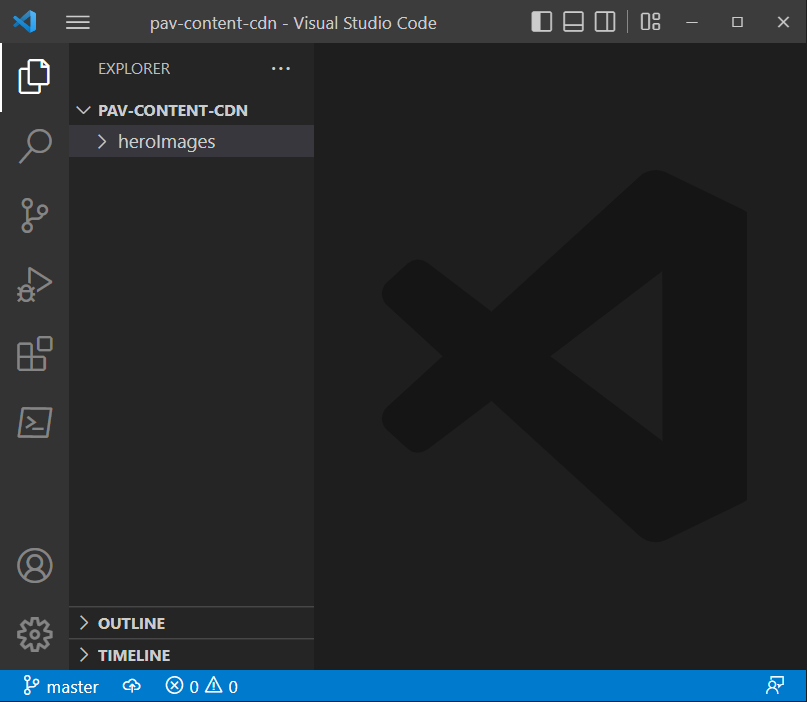
Your code project should look something like the following.


Nothing special, just a very simple one folder structure, with nothing in it, next go to 


and download some hi-res images into your heroImages folder, you should have something like the following.


Very simple, just a few images added to a heroImages folder.

At the root of your project add a PowerShell Script called AzureInfrastructure.ps1, just leave it blank for now, in a future post we are going to create a powershell scrip that is going to provision all of our azure cloud resources to host our hero images.


Next step is to create a project in azure devops Azure DevOps Services | Microsoft Azure

If you don't have an account, you'll need to make one, With our Azure devops portal open click the "New Project" in the upper right corner


Next you'll see the "Create new project" modal, fill in your details, and under advanced select Git version control and it doesn't really matter what you choose for "Work item process", however unlike me, don't put two .. next to each other in your project name.


Once you click the "Create" button it should take a minute or so to set up your project environment. 

With your project set up, let's configure a cloud repo for your project.


With the repo initialized take note of the second set of commands, the ones that lets you push your repo up to your Devops site.


In either your Windows terminal or right within code we are going to commit your code and push it to your repo, follow these steps
  1. Add all of your code to your branch: git add .
  2. Commit your your branch with a comment: git commit -m 'initi project'
  3. Set your project origin to your Devops repo: git remote add origin https://PawelCiucias@dev.azure.com/PawelCiucias/pav.content.cdn/_git/pav.content.cdn
  4. Push your project: git push -u origin --all
your terminal should look like the following.


I've put in green arrows for all of the commands you have to input. just and FYI at some point your azure devops environment, may ask for you to authenticate before pushing.

One final check that you can do is go to your repos in your devops Portal and confirm that your code has in fact been pushed to your online repo, click the orange button on your devops portal


You should see your source code pushed to your Azure devops online repository.


That's it for part 1, we created a local project, initialized git and pushed it up to Azure devops.