Tuesday, 16 October 2012

Delete a List


Add-PSSnapin "Microsoft.Sharepoint.PowerShell" -ErrorAction SilentlyContinue
             
<#
.Synopsis
   Delete Sharepoint list(s) from entire site
.DESCRIPTION
   Delete SharePoint list instance(s) from an entire site, all subwebs
.EXAMPLE
   delete-cSharePointList -ListTitle ListName -webUrl http://wingtipserver
.EXAMPLE
   delete-cSharePointList -ListTitle ListName -webUrl http://wingtipserver -subwebs
.EXAMPLE
   delete-SharePointList -ListTitle_1, listTitle_2, listTitle_n -webUrl http://wingtipserver
.EXAMPLE
   delete-SharePointList -ListTitle_1, listTitle_2, listTitle_n -webUrl http://wingtipserver -subwebs
#>
function delete-SharePointList
{
    [CmdletBinding(SupportsShouldProcess=$true, confirmImpact='High')]
    Param
    (
        # an array of list titles to delete
        [Parameter(Mandatory=$true,
                   ValueFromPipelineByPropertyName=$true,
                   Position=0)]
        [System.String[]] $ListTitle,
              # The url of the web the lists reside in
              [Parameter(Mandatory=$true,
                   ValueFromPipelineByPropertyName=$true,
                   Position=1)]
              [ValidateScript({Get-SPSite -Identity $_ | Select-Object -Property Exists -ErrorAction SilentlyContinue})]
              [System.String] $siteUrl,
              # switch to specify whether to delete list from all webs
              [Parameter(ValueFromPipelineByPropertyName=$true, Position=2)]
              [switch] $subwebs
    )

    Begin
    {
              $SPSite = Get-SPSite $siteUrl
    }
   
       Process
    {
              if($subwebs)
              {
                     $SPSite.AllWebs | ForEach-object{
                           deleteList $_ $ListTitle
                     }
              }
              else
              {
                     deleteList $spsite.RootWeb $ListTitle
              }
       }
      
    End
    {
              $SPSite.Dispose()
    }
      
      
}

function deleteList($currentWeb, $listTitle)
{
       $listTitle | ForEach-Object{
              $listInstance = $currentWeb.Lists.TryGetList($_)
                          
              if($listInstance -ne $null)
              {
                     Write-Output ("found a list with the title {0} in web {1}" -f $_, $currentWeb.Url)
             
                     If ($psCmdlet.shouldProcess("$listInstance in web $webUrl", "Delete List"))
                     {
                           $listInstance.Delete()
                           Write-Output ("Deleted list {0} in {1}" -f $_, $currentWeb.Url)
                     }
                     else
                     {
                           Write-Output ("Did not delete list {0} in {1}" -f $_, $currentWeb.Url)
                     }
              }
              else
              {
                     Write-Output ("Failed to find list with title {0} in web {1}" -f $_, $currentWeb.Url)
              }
       }

}

Find Deployed Feature

If you're getting an error that refers to the oh so helpful GUID, here's a handy little script that lists Features and filters them
By Guid:
$results=Get-ChildItem "C:\Program Files\Common Files\Microsoft Shared\Web Server Extensions\14\TEMPLATE\FEATURES\" feature.xml -rec

foreach ($File in $results)
{
   [xml]$feat=gc $file.pspath
   if($feat.feature.id -Like '3752ccf3*')
   {
        $feat.feature | Select ID, Title, Scope, Name
   }
}

By Title:
$results=Get-ChildItem "C:\Program Files\Common Files\Microsoft Shared\Web Server Extensions\14\TEMPLATE\FEATURES\" feature.xml -rec

foreach ($File in $results)
{
   [xml]$feat=gc $file.pspath
   if($feat.feature.title-Like 'TEC*')
   {
        $feat.feature | Select ID, Title, Scope, Name
   }
}

Monday, 15 October 2012

Rewire Content Database

this is the final post in reference to restoring your content database. Here I'll cover how to rewire the db permissions so that your user can actually do something with the db.

lets set our focus back to Microsoft sql server management studio.

Check under security for your machine and make sure that the user account you’re concerned with is available. in my case it's ssrap7/Administrator and to remind you my content database is WSS_Content. as you can see below, ssrap7/administrator is not included in my content database so I'm going to go ahead and add it.

to add a new user simply right click on your content database and hit add user, just make sure to select db_owner, refer to image below.

now with with db_owner checked off click the OK button. Next run the following Powershell


function LoadSharePointPowerShellEnviroment
{
                write-host
                write-host "Setting up Powershell enviroment for Sharepoint" -foregroundcolor Blue
                Add-PSSnapin "Microsoft.Sharepoint.PowerShell" -ErrorAction SilentlyContinue
                Write-host "Sharepoint PowerShell Snapin loaded." -foregroundcolor Green
}
LoadSharePointPowerShellEnviroment
Mount-SPContentDatabase "WSS_Content" -DatabaseServer "SSRAP7" -WebApplication
http://SSRAP7/

make sure to specify your database name, database server, and web application URL.

once you've run the power shell, you must add your account as local site admin

Open central administration-> application management ->Select Change site Collection administrators

This will show you the site collection administrators set the primary site collection administrator to your local administrator


hit ok, and BAM, you're done.

Restore a Content Database

In my previous post I demonstrated how to back a content database up, which is all fine and dandy but ultimately useless if you can't restore it.

Go to the manage content databases screen in central administration.
Once there make sure you have the correct web application selected, and click on your content database.
Scroll down to the bottom of the options for your content database and check off "Remove content database" then click OK
When complete, you will be redirected to the “manage content database” screen in central administration with your content database no longer available.

Do the following before the restore:
Stop IIS; use iisreset /stop in the command prompt
Stop the following services
  • SharePoint 2010 Administration
  • SharePoint 2010 Timer
Open up SQL Server Management studio
Right click on the Database you just removed
Go to Tasks-> Restore-> Database...


On the restore Database dialogue, under Source for restore check From device

Then click the browse (...) all the way to the right of the from device: radio control. This will bring up the Specify Backup dialogue.

here select the back up file you wish to restore, refer to my previous post to find out how to make one.

Once you’re back to the restore database dialogue, make sure to actually select your back up file, by checking it off.


With your back up file selected click the options page in the left hand pane. This will bring up the options page.
Make sure to check off overwrite the existing Data base, then hit OK.

This will now restore the content database with production data; this process takes a while so now would be a great time to do some documentation or a coffee break.

Now remember, start up the two services you disabled previously
  • SharePoint 2010 Administration
  • SharePoint 2010 Timer
and start up IIS again iisreset

In the next post I discuss how to rewire your content database to work with your current user

Wednesday, 26 September 2012

Back up Content Database

How to back up your Content Database

In this Post I'm going to demonstrate how to back up your content database, in my next post I'll demonstrate how to restore your Content database from a backup. This is especially useful if you use a development box for new features and you would want to attach you production data to see what happens; I think some people call that testing.

So let's get started.
  • Open up central administration
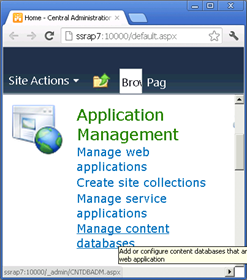
    • In the Application management
    • Click on Manage Content Databases link (right)
  • This will bring up the content database for our site
    • Make sure that you have the correct web application selected.
    • Make note of the Content Database name


Next go ahead and open the Microsoft SQL Server Management studio

  • In the object Explorer expand the database folder
  • Find the Content Database you previously identified
  • Right click on it
  • Go to Tasks->Back Up...


This will bring you to the backup Dialogue


Make note of the backup destination or just change it to the root. Then click OK

Upon successful completion you’ll see

That's it you've now backed up your content Database.

Friday, 14 September 2012

Event receiver rewire lookup

In my previous three posts, we demonstrated how to:

  • Create site columns
  • Create lookup fields
  • Create content types
  • Create list definitions
  • Create list Instances
  • Rewire Lookups using a PS script

Not only all this, but we started to touch upon the Event receiver, and in this post that's what we're going to focus on. Lookup columns are great, they're just a pain in the arse with the whole rewire business; if only there was a way to automate the process. One guess at what we're about to do.

If you guessed share my secrete recipe for sweet potatoes, you could be more wrong. We are going to automate a lookup field rewire using the feature receiver.

First thing's first open up your project from my previous post and add an event receiver to your Lookup.Date feature. To do this, right click on the feature and select "Add Event Receiver"

with the Event Receiver added your solution explorer should look like
Now When you open your Lookup.EventReceiver.cs file you should see:
At the bottom of your Event Receiver add the following function
/// <summary>
/// Function used to rewire lookup fields
/// </summary>
/// <param name="ConsumerWeb">The web where the list that will be using the source resides</param>
/// <param name="ProvidorWeb">The web where the source list resides</param>
/// <param name="lookupFieldName">The display name of the lookup filed in the consumer</param>
/// <param name="ConsumerListName">The display name of the list that is using the lookup field</param>
/// <param name="ProvidorListName">The display name of the list that is supplying the data to be looked up</param>
public static void UpdateLookupField(SPWeb ConsumerWeb, SPWeb ProvidorWeb, string lookupFieldName, string ConsumerListName, string ProvidorListName)
    {
        SPList consumerList = ConsumerWeb.Lists[ConsumerListName];
        SPList providorList = ProvidorWeb.Lists[ProvidorListName];
        SPFieldLookup field = (SPFieldLookup)consumerList.Fields[lookupFieldName];
 
        field.SchemaXml = field.SchemaXml.Replace(field.LookupWebId.ToString(), ProvidorWeb.ID.ToString());
        field.SchemaXml = field.SchemaXml.Replace(field.LookupList.ToString(), providorList.ID.ToString());
 
        field.Update(true);
    }

with your rewire function added, the next step is to re comment the FeatureActivated function. once that's re-commented add the following code, but make sure to sub in your sites url and port number.

public override void FeatureActivated(SPFeatureReceiverProperties properties)
{
    SPWeb web = properties.Feature.Parent as SPWeb;
 
    using (SPSite site = new SPSite(web.Site.ID))
        using (SPWeb providorWeb = site.RootWeb)
        {
            SPWeb ConsumerWeb = providorWeb.Webs["hr"].Webs["JobPosting"];
            UpdateLookupField(ConsumerWeb, providorWeb, "Department", "Job Posting", "Job Posting Departments");
        }
}

and that's it when you deploy your project your look up fields will automatically rewire.

Wednesday, 22 August 2012

Lookup Site Column

So in my past two posts, we created the site columns, content types, list definitions and list instances to create two lists, one for departments and one for job postings. In this post we are going to bring them together using a lookup column, this is going to let our job posting list feed from the departments list so that as we update our departments they are automatically available in our job posting list.

If you haven't gone through my previous posts here are the links, they're rather trivial if you're already familiar with SharePoint, but if you're a noob like me, then here you go.


Let's get started with our Lookup Site column, go back to your site columns elements file and add the following:

  <Field ID ="{C0CC842C-8059-482A-AE40-0B5601FB4B60}"
         Name ="SPJ_DepartmentLookup"
         DisplayName="Department Lookup"
         Type="Lookup"
         List="Lists/Departments"
         Title="Department"
         ShowField="Title"
         OverwriteInChildScopes="TRUE"
         Overwrite="TRUE" />

With our Site Column created next we have to add it to our Job Posting Content type, so go ahead pop open the JobPosting Content type and add it to the fields:
<FieldRef ID ="{C0CC842C-8059-482A-AE40-0B5601FB4B60}" Name ="SPJ_DepartmentLookup" />
Now Deploy your Lookup.Schema to add your new lookup site column to the site columns collection and to the job posting content type. With that complete you've come to a fork in the road. you may notice that just by adding the site column to the content type it doesn't affect your list instance at all. This is because your list instance in based on your list definition which used your content type at the time it was instantiated, that is to say that the connection doesn't exist when you build a list definition it uses the content type at the time of development and subsequent changes to the content type are not reflected in the list definition.

Your options are as follows
  • delete the list definition and rebuild it using your new content type
  • try to modify the list definition schema
I recommend the former over the latter of the options, once you've rebuilt your list definition go into the elements file and make sure that Type property is unique to all other list definitions.
<?xml version="1.0" encoding="utf-8"?>
<Elements xmlns="http://schemas.microsoft.com/sharepoint/">
    <!-- Do not change the value of the Name attribute below. 
         If it does not match the folder name of the List Definition project item, 
         an error will occur when the project is run. -->
    <ListTemplate
        Name="JobPosting_LD"
        Type="10001"
        BaseType="0"
        OnQuickLaunch="TRUE"
        SecurityBits="11"
        Sequence="410"
        DisplayName="JobPosting_LD"
        Description="My List Definition"
        Image="/_layouts/images/itgen.png"/>
</Elements>
With that complete, open up the elements file for your list instance and ensure that the value of the TemplateType property matches up with the previous type value:
<?xml version="1.0" encoding="utf-8"?>
<Elements xmlns="http://schemas.microsoft.com/sharepoint/">
  <ListInstance Title="Job Posting"
                OnQuickLaunch="TRUE"
                TemplateType="10001"
                FeatureId="a2c12d31-b651-4eee-9214-9f4d970d0b4a"
                Url="Lists/JobPosting"
                Description="List of all Corporate Job Postings">
  </ListInstance>
</Elements>
Now you can go ahead and deploy your Lookup.Data project, awesome great we're done now...
Unfortunately not so fast, SharePoint does this awesome thing where it gives a list instance a brand new GUID every time it's deployed, meaning that you have to rewire your lookup columns after every single deployment.

Luckily I have a script for you that will do the trick, execute the following script in PowerShell to fix your lookup column, just remember to specify your own URL and port number.

$url = "http://urlpath:port"
 
function LoadSharePointPowerShellEnviroment
{
write-host
write-host "Setting up Powershell enviroment for Sharepoint" -foregroundcolor Blue
Add-PSSnapin "Microsoft.Sharepoint.PowerShell" -ErrorAction SilentlyContinue
Write-host "Sharepoint PowerShell Snapin loaded." -foregroundcolor Green
}

try
{
    LoadSharePointPowerShellEnviroment
 
    $RootSite = new-object Microsoft.SharePoint.SPSite($url)
    $RootWeb = $RootSite.rootweb
 
$JobPostingList = $RootWeb.lists["Job Posting"]
$field = $JobPostingList.fields["Department Lookup"]
$DepartmentList = $RootWeb.lists["Department"]
 
    Write-Host -ForegroundColor red  $field.lookupWebId.toString() to $RootWeb.id.toString()
    Write-Host -ForegroundColor red  $field.lookupList.toString() to $DepartmentList.id.toString()
 
    $field.schemaXml = $field.schemaXml.replace($field.lookupWebId.toString(), $RootWeb.id.toString())
$field.schemaXml = $field.schemaXml.replace($field.lookupList.toString(), $DepartmentList.id.toString())
                 
    $field.pushChangesToLists = $true
    $field.update($true)

    Write-Host -ForegroundColor Green "Lookup lists rewired"
}
catch [Exception]
{
Write-Host -ForegroundColor Red "Error in  Rewire_Lookup_Fields: $_"
}
finally
{  
    $RootWeb.Dispose()
$RootSite.Dispose()
}
After running your script, your lookup column should be wired up.